You record a five-minute walkthrough with the screen recorder built into a Chromebook, drop the file into a shared folder, and the replies start coming in. PowerPoint on a colleague’s Mac won’t insert it, iMovie won’t import it, and the TV in the meeting room lists it as an unsupported file.
The recording itself is fine: ChromeOS saves screen recordings as WebM, an open format that Chrome plays without complaint, while plenty of software outside the browser still expects MP4.
Convertio’s webm to mp4 converter re-encodes a WebM screen recording into an H.264 MP4 file in the cloud, so the result opens in PowerPoint and iMovie and plays on phones and TVs that ignore WebM.
The default H.264 codec is what makes that work. Other codec options trade some of that compatibility for speed or smaller files, which is where conversion problems usually start.
Short answer: upload the .webm file, keep MP4 as the output format, leave the codec on H.264 (AVC), press Convert and download the result. Convertio deletes the uploaded WebM right after conversion and removes the finished MP4 from its servers within 24 hours.
Why WebM plays in Chrome but stalls elsewhere?
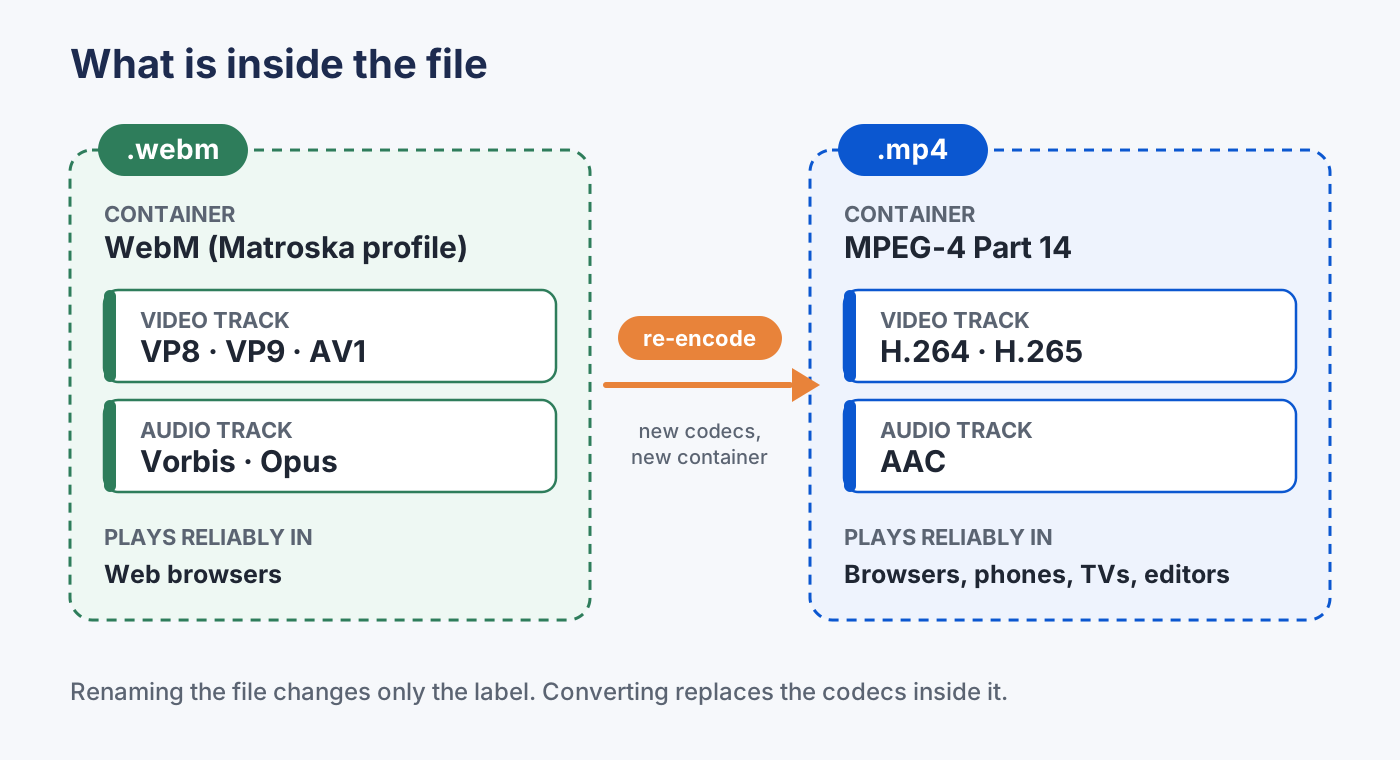
Every video file has two layers. The outer layer is the container, the part the extension names: .webm, .mp4, .mov. Inside it sit the video and audio streams, each compressed with a codec. A player has to understand both. It needs to open the container and then decode every stream it finds inside.
WebM appeared in May 2010 as a royalty-free format for video on the web, backed by Google. Its container is a trimmed-down profile of Matroska (the format behind .mkv files), and it carries VP8, VP9 or AV1 video with Vorbis or Opus audio. MP4 is older and comes out of the MPEG standards: it usually holds H.264 or H.265 video with AAC audio.
Browsers adopted WebM early because they could decode its codecs without paying license fees. Apple held out the longest. Safari on the Mac only started playing WebM with version 14.1 in 2021, and support on the iPhone arrived in stages after that. Desktop software moved even more slowly.
Adobe Premiere (called Premiere Pro until early 2026) still needs a third-party plug-in to import WebM, and iMovie doesn’t accept WebM files at all. Microsoft supports WebM in PowerPoint for Windows but leaves it off the Mac version’s list, and recommends .mp4 files with H.264 video and AAC audio on every platform.
Where WebM files come from?
Few people pick WebM on purpose. It usually arrives as the default output of something that lives close to the browser:
- Chromebook screen recordings. The Screen capture tool in ChromeOS saves every video it records as a .webm file.
- Browser-based recorders. Web apps that capture your camera or screen inside a browser tab often hand back WebM, since Chrome and Firefox record that format natively.
- PlayStation 5 captures. The PS5 can save 1080p and 4K gameplay clips as WebM.
- Animated web graphics. Designers export overlays and website animations as WebM because the format can store an alpha channel, which keeps the background transparent.
WebM vs MP4 side by side
| WebM | MP4 | |
|---|---|---|
| First released | 2010, WebM Project (Google) | 2003, Moving Picture Experts Group (MPEG-4 Part 14) |
| Container based on | Matroska | ISO base media file format, derived from QuickTime |
| Typical video codecs | VP8, VP9, AV1 | H.264, H.265 (AV1 and VP9 also possible) |
| Typical audio codecs | Vorbis, Opus | AAC (MP3, Opus and FLAC also possible) |
| Licensing | Royalty-free | H.264 and H.265 are patent-licensed codecs |
| Transparent video | Supported | Not with H.264 |
| Current desktop browsers | All major ones (Safari since 14.1, fully since 16) | All major ones |
| PowerPoint | Windows only, and not the recommended format | Microsoft’s recommended format (H.264 + AAC) |
| iMovie and Adobe Premiere | No native import | Imports directly |
| Best suited to | Video embedded on websites | Sharing, editing, presenting, archiving |
Converting WebM to MP4 in Convertio, step by step
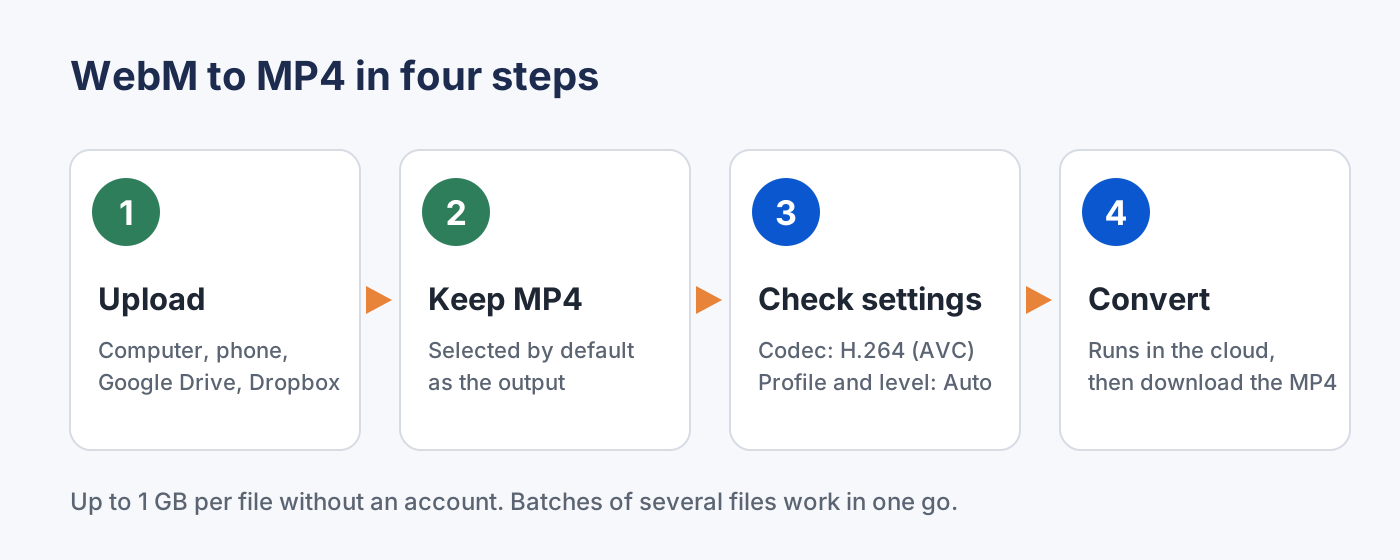
- Add the file. The WebM to MP4 page accepts uploads from a computer, an iPhone or Android phone, Google Drive or Dropbox. No account is needed for files up to 1 GB.
- Check the output format. MP4 is already selected. The dropdown lists the rest of the 37 video formats Convertio supports, in case a project calls for MOV or MKV instead.
- Open the settings if you need them. The gear icon reveals the codec, H.264 profile and level, resolution, quality, aspect ratio and bitrate. The defaults (H.264, profile and level on Auto) suit most screen recordings.
- Convert and download. Add more WebM files first if you have a batch, then press Convert. The conversion runs in Convertio’s cloud, so an old laptop doesn’t slow the job down. When it finishes, save the MP4 to your device or send it straight to Google Drive or Dropbox.
Limits worth knowing before you upload
- Without an account, each file can be up to 1 GB.
- The Basic and Pro plans raise the limit to 3 GB and 10 GB per file (Lite stays at 1 GB), and a Custom plan goes up to 20 GB.
- Transfers run over an encrypted connection, and only the IP address that started a conversion can download its result.
Picking the right settings
A conversion that looks like it failed has usually produced a valid MP4 with a codec the destination app can’t decode. Choose the codec by where the file will play, and treat file size as a second concern.
| Setting | Choose it when | Watch out for |
|---|---|---|
| Codec: H.264 (AVC), the default | The file is going into PowerPoint or iMovie, onto a TV or phone, or to someone whose setup you don’t know | Files are noticeably larger than H.265 at the same quality |
| Codec: H.265 (HEVC) | You want a smaller file and the devices playing it are recent | Older computers and TVs may not decode it |
| Codec: Without reencoding | Speed matters and the destination can play VP9 or AV1 inside an MP4 | The video keeps its original codec, so apps that need H.264 can still reject it |
| Profile: Baseline or Main | The MP4 is meant for an older phone, TV or media player | Convertio’s own rule of thumb: the older the device, the lower the profile |
| Level: Auto | Almost always | Change it only if a device manual names a specific level |
Why renaming .webm to .mp4 doesn’t fix anything. A new extension changes the label on the envelope without translating the letter inside. The file still holds VP8 or VP9 video and Opus or Vorbis audio. VLC may play it anyway, since it reads the contents rather than the name, but iMovie, PowerPoint for Mac and many TVs will still fail on it.
Four mistakes to avoid when converting
- Expecting transparency to survive. A WebM overlay with a see-through background loses it in an H.264 MP4, because that codec has no alpha channel. The empty areas come out as a solid color, usually black. If the transparency matters, MP4 is the wrong target.
- Upscaling a screen recording. Raising a 720p capture to 1080p in the resolution setting makes the file bigger without adding any detail. Keep the original resolution unless a platform demands a specific size.
- Converting a copy of a copy. Every lossy re-encode recalculates the picture and drops a little more detail. When you need a second version, start again from the original WebM, not from an MP4 you converted last week.
- Deleting the original too early. Keep the WebM until you have played the MP4 on the device or in the app it was made for. A wrong codec choice costs two minutes to redo, as long as the source file still exists.
When keeping WebM makes more sense?
WebM still has the edge in a few places. On a website, VP9 and AV1 usually reach the same visual quality as H.264 at a lower bitrate, which means smaller downloads for visitors. Animated overlays need its alpha channel. Open-source projects often prefer it because every codec it requires is royalty-free.
Mozilla’s guide to media container formats suggests a middle path for web pages: offer WebM as the first source inside the video element with an MP4 fallback behind it, and use MP4 alone when you can only publish one version. For anything leaving the browser, such as a slide deck, an edit timeline, a TV or a message to a colleague, MP4 is the safer choice.
FAQs
Does converting WebM to MP4 lower the quality?
Re-encoding is lossy by nature, so some detail is always recalculated. With sensible bitrate settings the difference in a screen recording or a talking-head video is rarely visible. The Without reencoding option copies the video stream unchanged and keeps the original quality, though the result then plays only where the original codec is supported.
Can I convert on a phone?
Yes. The converter runs in mobile browsers and accepts files straight from an iPhone or Android phone, as well as from Google Drive and Dropbox.
Will subtitles carry over?
According to Convertio, embedded subtitle streams can transfer to the MP4 container. Styled subtitles may lose some of their formatting along the way, and subtitles burned into the picture stay there regardless, since they are part of the image.
Is there a way to automate this for hundreds of files?
For large batches or regular jobs, Convertio offers a developer API and a command-line tool, so conversions can run from a script instead of the upload page.