UGC videos have become one of the strongest drivers of attention across social platforms. Brands want content that feels real, fast, and native to the feed. Creators want speed without losing quality.
Yet traditional UGC creation still depends on filming setups, editing skills, and long turnaround times. This is where AI-led video agents are starting to change the workflow.
Vmake AI Video Agent introduces a different way to create UGC videos. You don’t have to move from one tool to another for writing, visuals, sound, or editing.
Everything happens in one space. Tell the agent what you want, share an image or idea, and it takes care of the rest. From hooks to pacing, the process feels more like collaborating with a creative team than using software.
In this article, we explore what the Vmake AI Video Agent is, how it works for UGC video creation, and what it is like to actually use it.
The goal is to understand whether it can truly simplify UGC production for creators, brands, and marketers who need content at scale.
What Is Vmake AI Video Agent?
Vmake AI Video Agent is a chat-based video creation tool designed specifically for UGC content. It allows creators and brands to plan, generate, and refine videos inside a single guided conversation.
Instead of handling scripting, visuals, voice, and editing separately, everything is managed within one interface.
The agent responds to clear instructions and builds videos based on your goal, platform, and preferred style. You can adjust individual elements such as the opening hook, script lines, pacing, or visuals without starting over. This makes the process easier to control and better suited for repeated UGC creation.
Core Features of Vmake AI Video Agent
The agent handles video creation through a structured process that keeps things simple and controlled. Here are its five key capabilities.
Chat-Driven UGC Creation
The entire workflow runs through a chat interface. You explain your video idea in plain language, and the agent turns it into a thoughtfully designed UGC video without timelines or complex controls.
Creative Strategist for Script Direction
This role helps shape the video foundation. It focuses on hooks, messaging flow, and UGC-style storytelling so the script feels natural and platform-ready.
Video Editor for Structure and Flow
The video editor role organizes scenes, pacing, and transitions. This ensures the final video feels smooth and watchable rather than stitched together.
Graphic Designer for Visual Support
Visual elements are added to support the story. They enhance engagement without taking focus away from the main message.
Audio Expert for Voice and Sound Balance
Audio handling is managed automatically. Voice clarity, timing, and balance are adjusted so the video feels clean and easy to follow.
More Tools That Make the Workflow Smoother
Apart from the core features, Vmake offers extra tools that make the entire process easier and more useful for creators.
Templates and Presets for Faster, Branded Captions
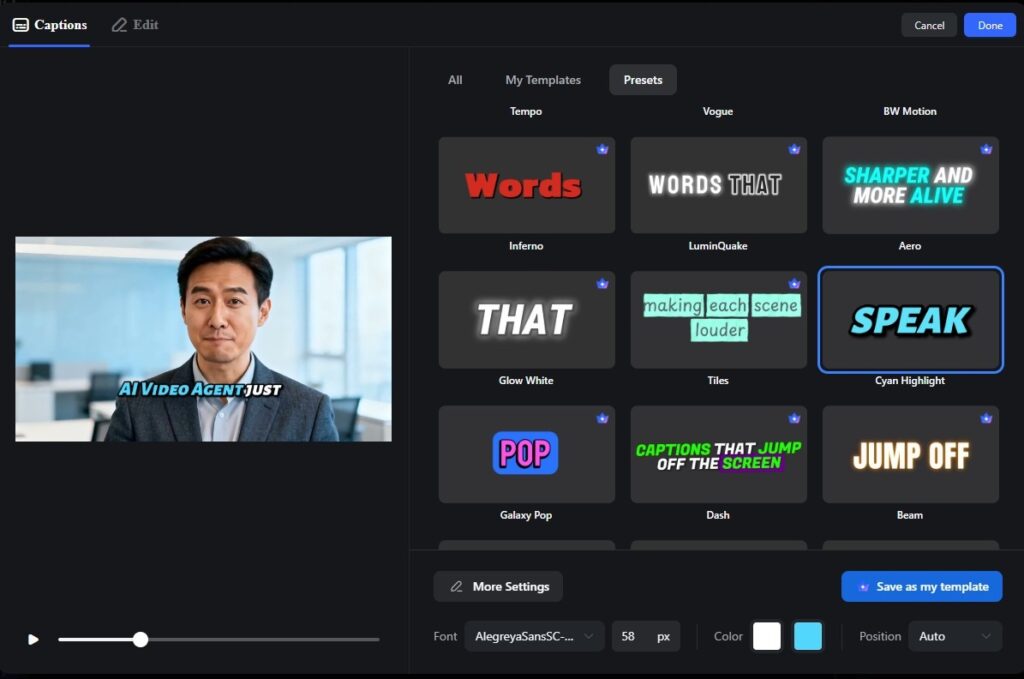
Vmake gives you two ways to style captions depending on what you need. The template library lets you build fully customized designs with your own fonts, colors, and layout so your videos carry a consistent, branded look.
Presets offer the quick option. With one click, you can switch to bold or highlight styles that instantly clean up your captions without extra design work. This mix of deep customization and ready-made styles makes caption editing faster and more flexible.
Explode Feature for Detailed Editing
The Explode feature separates the entire video into script, visuals, audio, and timing. This lets you edit each layer individually.
You can rewrite lines, swap images, refine pacing, or adjust sound without disrupting the rest of the video. It gives creators deeper control while keeping the workflow easy to manage.
How to Create a UGC Video Using Vmake AI Video Agent?
Creating a UGC video does not need heavy planning or editing skills. Vmake handles most of the work in the background while you guide the direction. This section explains how that flow comes together.
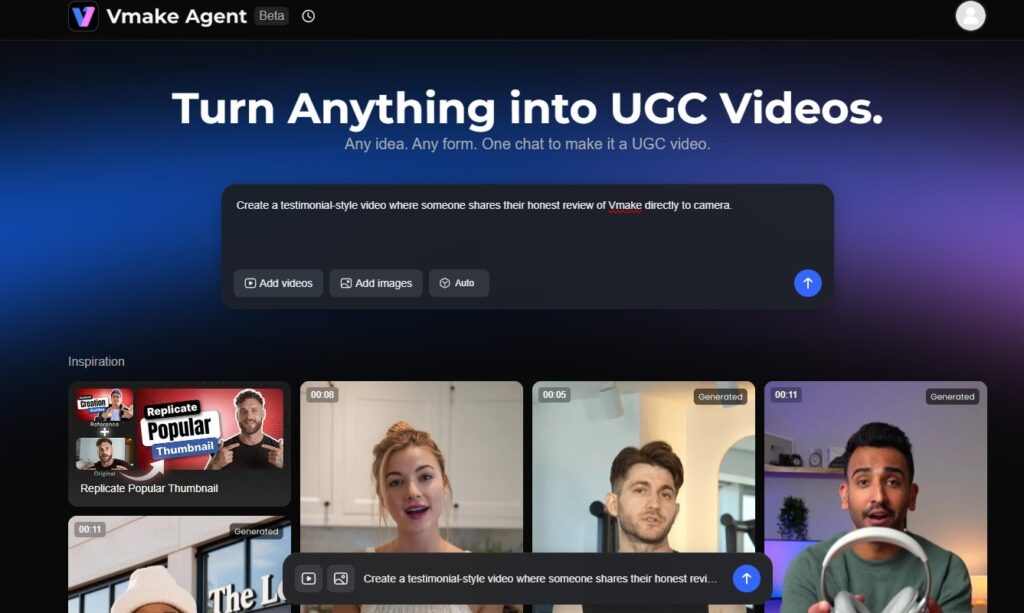
Step 1. Open the Vmake AI Video Agent page. Add your prompt.
Visit the Vmake Agent page. There is a chat box on the screen where you can type your ideas.
Write the kind of UGC video you want to create. Select the video type, whether it is a demo, testimonial, or short promotion. Add images or video clips through the upload options to guide the agent.
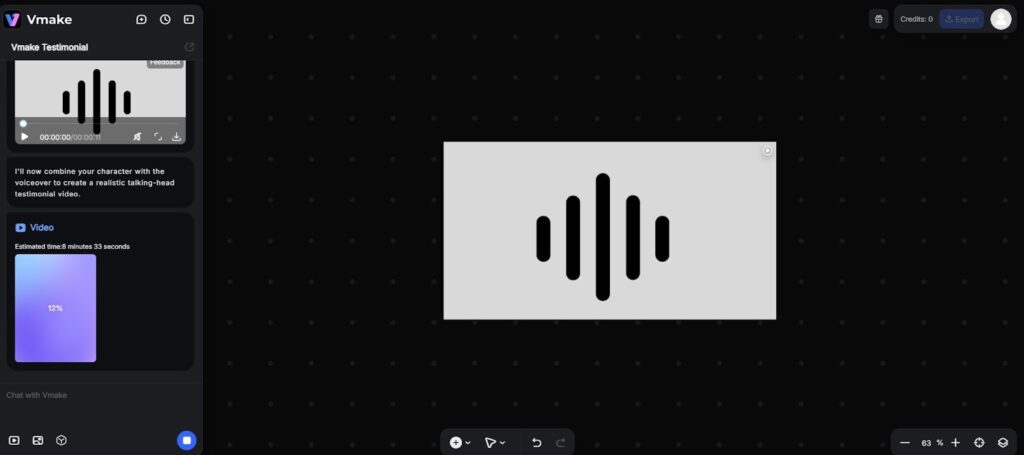
Step 2. Submit your request and Let the AI build the video
Click the arrow button to send your prompt. This starts the video creation process. A progress bar appears while the tool syncs visuals, audio, and pacing on its own.
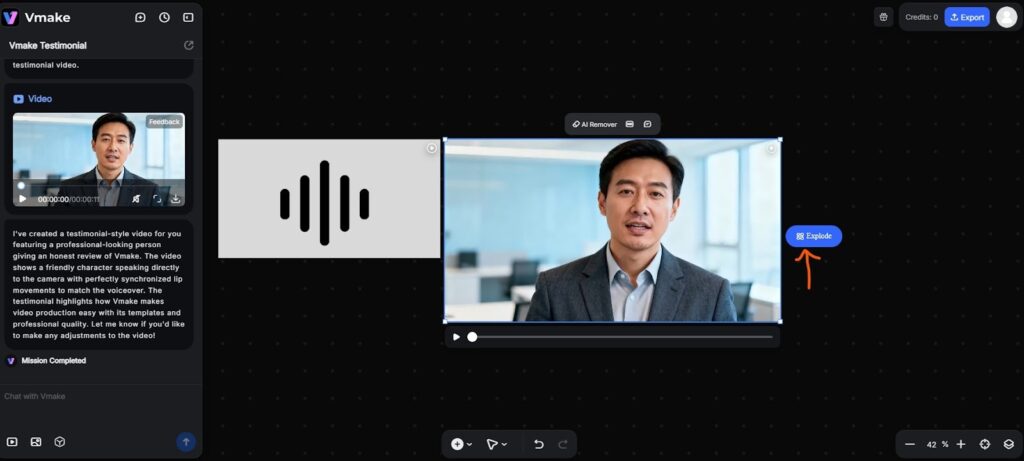
Step 3. Preview the video and enter deep editing
Once the preview appears, watch it and note what needs fixing. Click “Explode” to see all elements separately, including script, visuals, audio, and thumbnail. You can also remove video watermark elements at this stage.
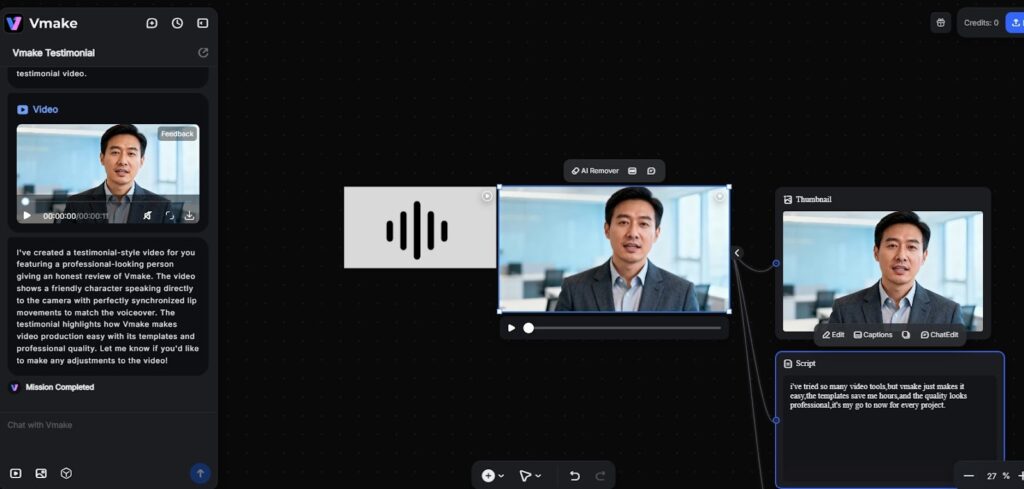
Step 4. Edit the thumbnail or visuals
Choose a frame or thumbnail. Update images, captions, layout, or the overall look. Open the script section to rewrite lines, fix wording, or refine the message.
Step 5. Edit timing and captions
Use the edit panel to sync text with speech. Fine-tune how each line appears on screen.
Step 6. Work with templates
Open the Templates section. Browse available styles. Choose a preset and customize the design such as fonts, colors, alignment, and positioning. Save your custom template if you want to reuse it later.
Step 7. Highlight important words
Click on any word in the script. Enable the option to mark it as a keyword. The word will appear highlighted with a visual effect.
Step 8. Review changes and save
Play the updated video to confirm timing and readability. Click “Done” to apply all edits.
Step 9. Export the final video
Click ‘Export’. This downloads the video to your device. Save it.
Some advanced features may need credits. A prompt will appear if an upgrade is necessary.
Why Vmake AI Video Agent Fits UGC Video Creation So Naturally?
UGC creation is fast-paced and experimental. Creators often test multiple hooks, formats, and tones before finding what works.
When tools slow this cycle down, consistency becomes difficult. Vmake AI Video Agent supports this trial-and-adjust the entire process by allowing quick changes without disrupting the overall process.
The entire experience is built around conversation. Instead of jumping between dashboards or settings, you explain what kind of video you want and refine it through prompts.
This mirrors how creators usually think. Start with a rough idea, adjust the tone, tweak the hook, and shape the final output step by step.
Another reason it suits UGC is flexibility. The agent supports edits at every stage, allowing you to adjust messaging, visuals, or pacing as needed. This helps you test different ideas without recreating the video from the beginning.
Most importantly, the tool supports fast iteration. UGC thrives on volume and consistency. Vmake AI Video Agent helps maintain that rhythm by shortening the gap between an idea and a ready-to-post video, while still keeping the content conversational and relatable.
Conclusion
Vmake AI Video Agent is best viewed as a working tool and not just a concept. It suits creators and teams who understand what kind of content they want but need a faster way to produce it. The strength lies in how easily ideas move forward without friction or overthinking.
The ability to adjust elements after generation makes the workflow rewarding and flexible. You are free to experiment, correct, and refine without restarting the process. This encourages more testing and iteration, which is essential for UGC performance.
If your priority is steady output with control at every stage, this tool fits naturally into a modern content workflow.