Do you know how many photos I’ve deleted because of the quality since last year?.
I have lost count.
Sometimes the shot was beyond saving. Other times, I made it worse myself. A few extra edits in Photoshop.
An AI tool that overdid the sharpening, and a perfectly decent photo no longer looked natural.
That’s why I’ve started reviewing AI image enhancers more seriously. I wanted to find tools that improve photos without making them look overedited.
Wink kept coming up in those conversations. It has strong reviews and promises better image quality with just a few clicks.
But does it actually deliver?.
I spent some time testing Wink’s AI Photo Enhancer on different types of images. Here’s my honest experience.
What’s Included in Wink’s AI Photo Enhancer?
Before testing the feature, I wanted to see exactly what Wink offers. It turned out to be more than a simple one-click enhancer. Wink Photo Enhancer includes several dedicated modes, such as:
Regular Modes
- HD
- Ultra HD
- Portrait
- AI UHD
Scenario Modes
- Concert
- Blurry Photos
- Product Images
- Animation
- Text
- Game
I focused on the ones most people are likely to use in everyday editing. That gave me a better idea of how the tool performs.
Blurry Photos Mode
This was one of the first modes I tested because blurry photos are something we all deal with. You take a photo that looks fine on your phone. Later, you notice it lacks sharpness.
For my test, I used a travel photo with slight motion blur. The details, buildings, and textures looked soft.
What stood out about Wink was that it didn’t just add sharpness everywhere. It focused on areas that actually needed more detail.
The result was subtle but noticeable. Buildings looked clearer, and the image felt more balanced without the artificial look that heavy sharpening can create.
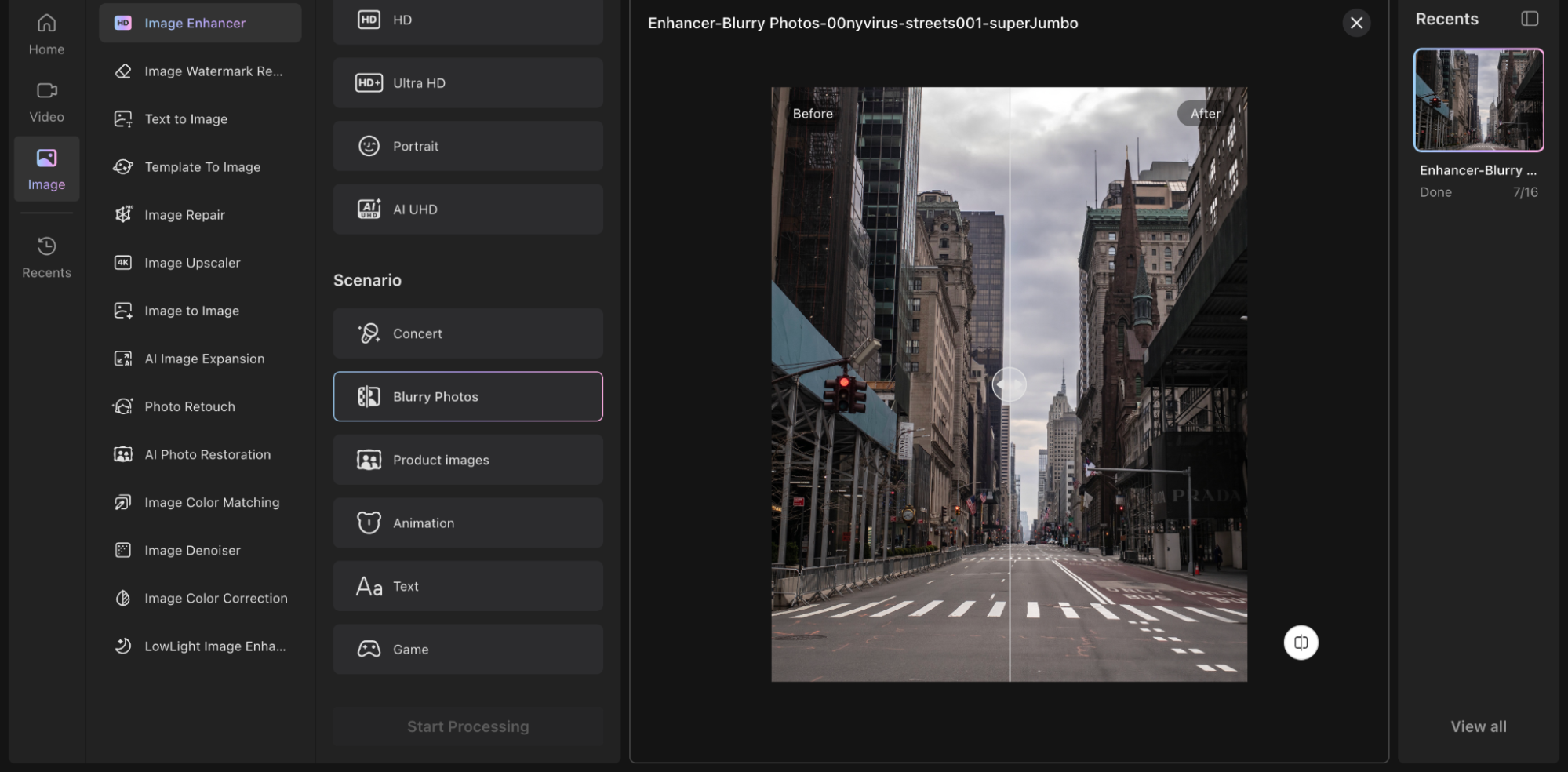
It won’t fix extreme blur. But for photos affected by camera shake, digital zoom, or compression, it can bring back a lot of lost clarity.
Wink comes with batch processing. This lets you enhance several photos at once, saving time without repeating the same edits.
If I do the math correctly, I could save hours fixing a big batch of blurry images. A useful feature for creators and anyone working with large image collections.
| My takeaway: A useful fix for photos that are almost good enough but need a little extra detail before sharing. |
Product Images Mode
I tested this on a cream product box shot in poor lighting. The image had uneven exposure and dull colours. If you look closely, a visible shadow falls across the packaging.
Wink improved the lighting balance, recovered some lost details, and made the box look cleaner without making the colours feel fake.
For quick product shots taken on a phone, this mode can help turn average images into more usable visuals.
After processing, the cream tone looked cleaner, and the pink elements appeared more vibrant. Plus, the product stood out better against the background.
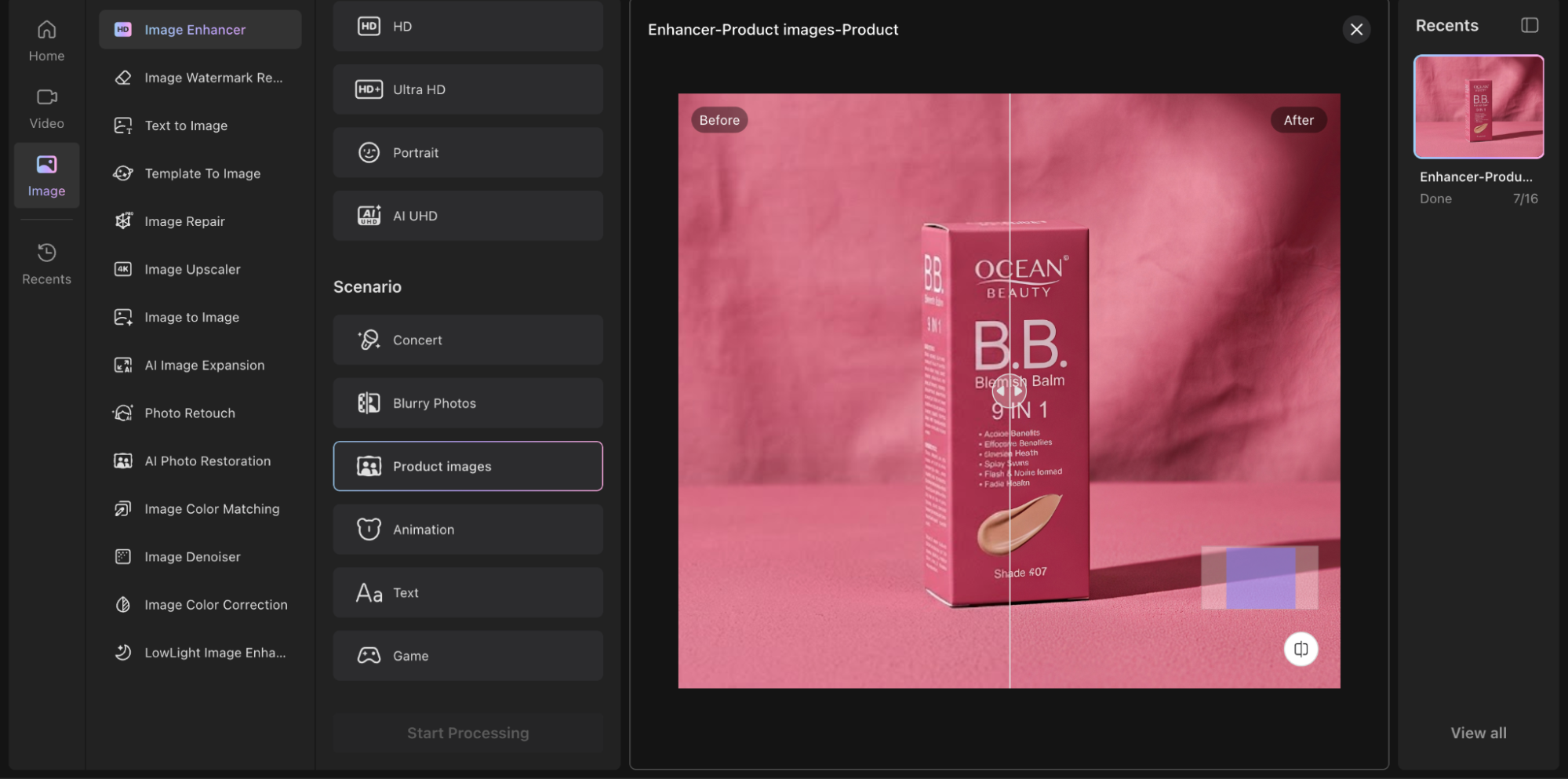
Small improvements like better colour and clarity can make product images feel more appealing. As a result, it seems trustworthy to customers. Even if my product photo is already good, I’d still use this mode as a final refinement.
Concert Mode
Concert photos are often challenging because of changing lights and fast movement. So, the challenge for almost all AI photo enhancers.
I tested Wink on a photo from a Charlie Puth live concert. It is taken from far away, with stage lights affecting the overall image.
After processing, the shot looked brighter and more balanced. The face is more visible. Small details, like the piano and stage elements, became easier to notice. However, the overall concert feel was preserved.
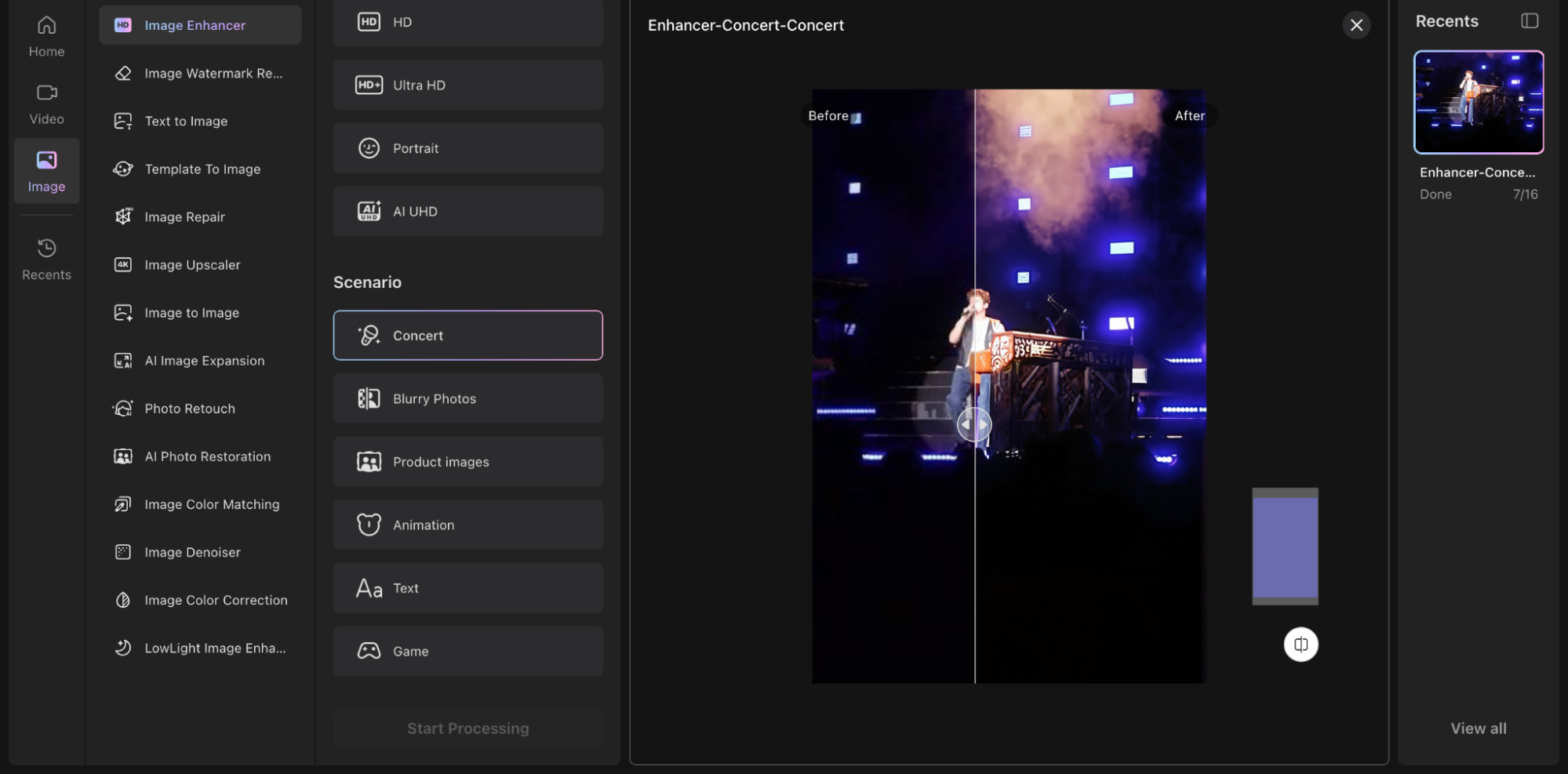
A useful mode for fan-shot concert photos where distance and movement often affect image quality.
Text Mode
Wink stood out to me in this area because one common challenge with AI image enhancement is preserving text accuracy.
When text is blurry or unclear, some tools try to rebuild missing details. Instead of improving the original letters, they may create something different.
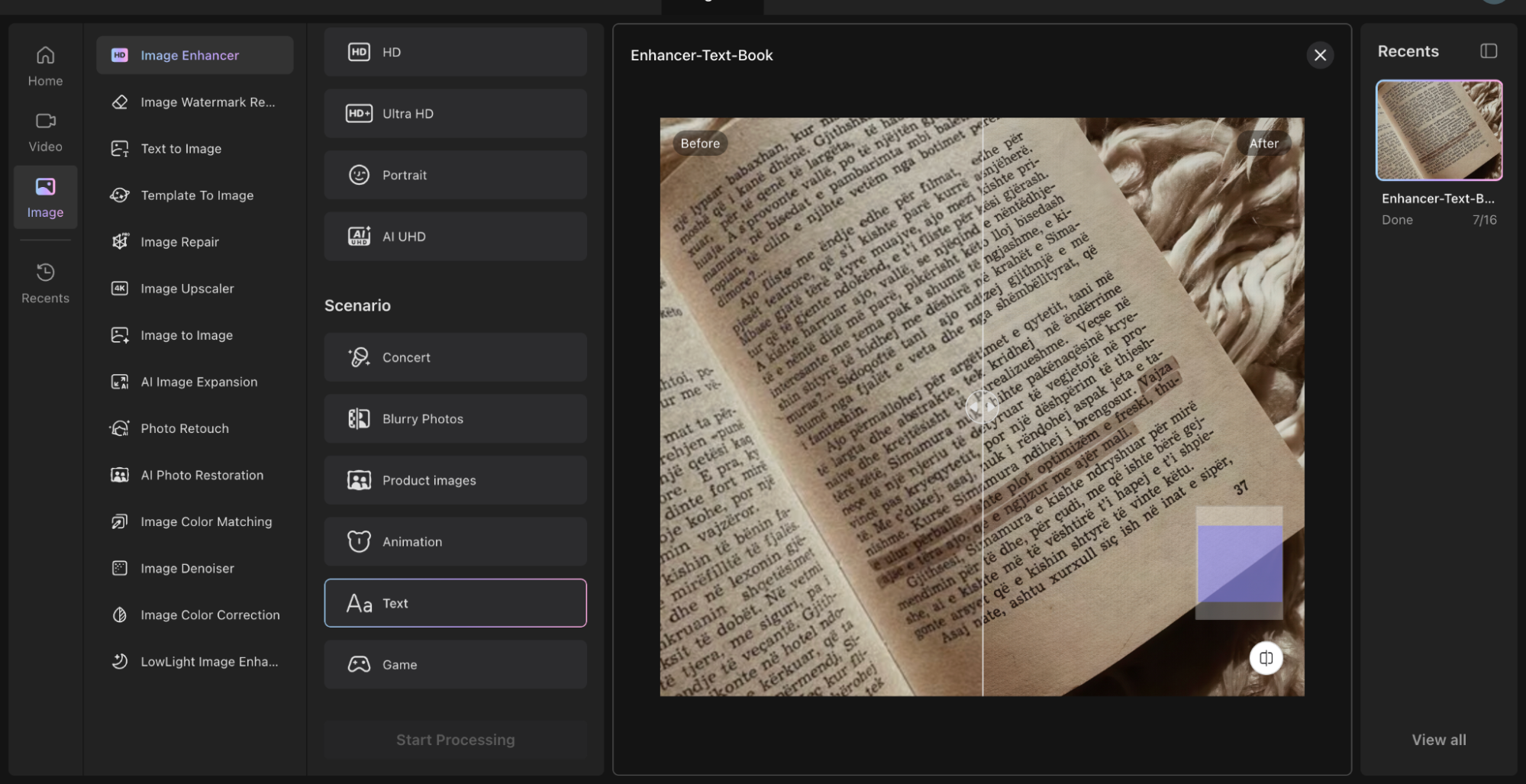
For Wink’s Text Mode, the real test is not just making text sharper. It’s whether the original words stay accurate after enhancement.
In my test, Wink focused on improving clarity while keeping the original text intact. The letters looked sharper, and the content remained readable without adding new characters to the text.
That makes a big difference for documents and any image where accuracy matters more than just sharpness.
Animation Mode
Animation images are tricky because improving quality is not just about adding sharpness. It’s about preserving the details that make a character unique.
For this test, I chose a simple animated character image and looked at how Wink handled smaller details.
Now, looking at the after image, the improvements were visible. The eye colour remained consistent, and facial details like freckles were preserved. The character design? Positively, stayed intact.
This is important because AI enhancement can sometimes improve clarity by changing the original artwork. A good result should make the image cleaner while keeping the same identity.
Game Mode
I chose a Star Wars game screenshot for this test. The image had a lot going on. It came with character details, armour textures, a glowing lightsaber, and a detailed background.
The interesting part was seeing whether Wink could enhance these details without changing the original game visuals.
After enhancement, the lightsaber looked sharper, the glow appeared more defined, and small details on the character’s armour became easier to notice. The background also felt cleaner without losing the cinematic look.
For gaming screenshots, the biggest win is not adding new details. It’s bringing out the ones that were already there.
Who Should Use Wink?
Wink makes the most sense for people who regularly work with photos and videos but don’t always have perfect source material.
- Content creators: Improve phone-shot photos and videos before posting on social media.
- Small businesses and sellers: Make product images look cleaner without complex editing.
- Travellers: Recover details from photos affected by poor lighting, blur, or difficult shooting conditions.
- Social media users: Give old or compressed images a quick quality boost.
- Casual photographers: Enhance everyday shots without spending time on manual editing.
Final Verdict: Is Wink Worth Using?
In a word. Yes.
After testing Wink, my biggest takeaway is that AI enhancement is not just about making images sharper. It’s about improving what is already there without changing the original character of the image.
The best results came from photos that were almost good enough. For instance, the images were a little blurry, poorly lit, compressed, or lacking detail. Instead of completely transforming them, Wink helped bring them closer to how they looked in the moment.
That’s where I think AI enhancers fit into the editing process. They are most valuable when you want to rescue a good photo that didn’t turn out perfectly, rather than spend time fixing every small issue manually.