File Transfer Protocol has been around for decades, and it’s still one of the most common ways to move files between a local machine and a remote server.
If you manage a website, share large files with Commander One FTP Client, or access remote servers as part of your workflow, you probably use FTP regularly. Mac users need a solid FTP client to handle these tasks, and the built-in options in macOS are limited at best.
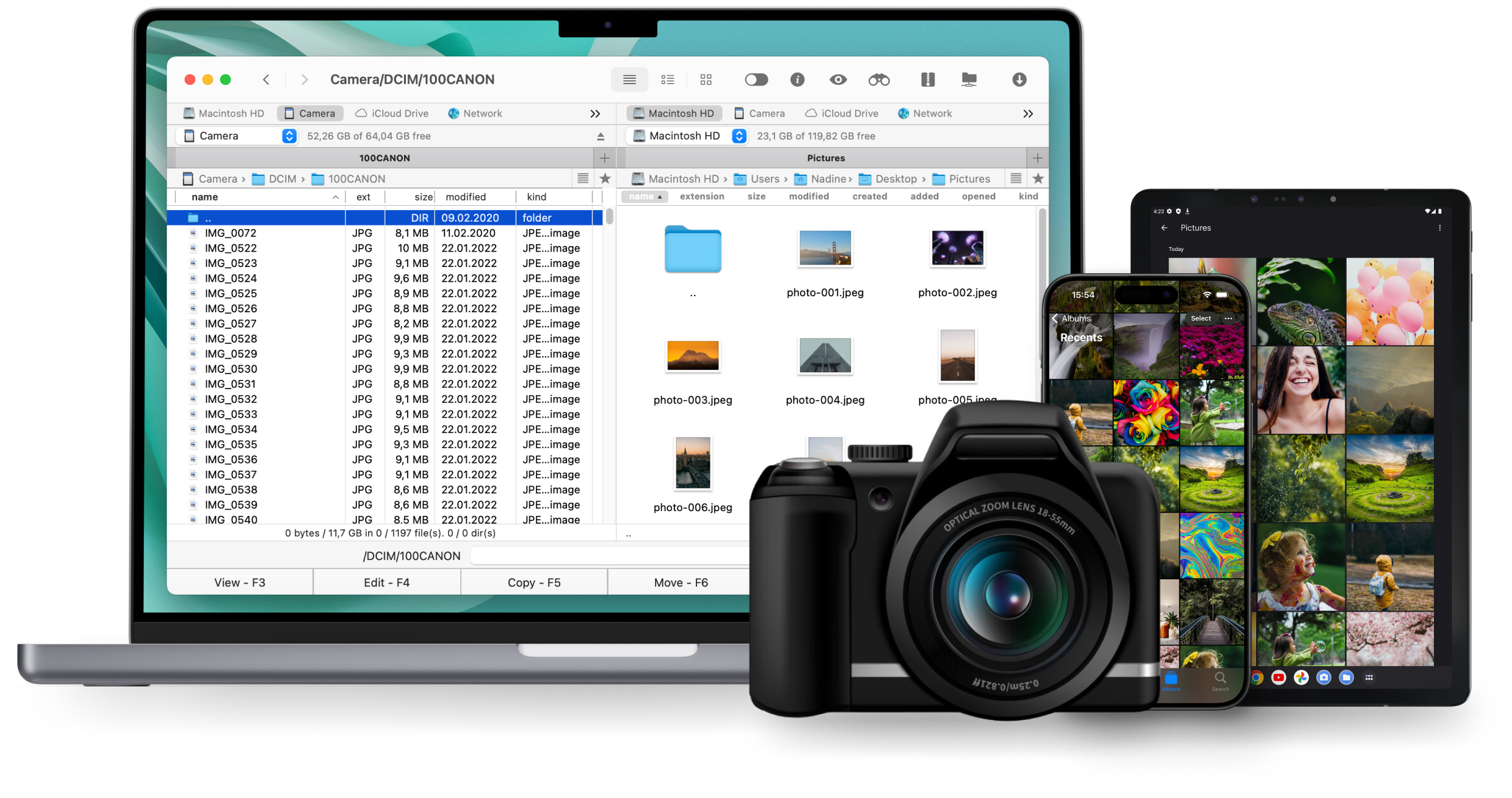
Commander One is a dual-pane file manager for macOS that doubles as a full-featured FTP client. It supports FTP, SFTP, and FTPS connections out of the box, so you can transfer files securely without switching between apps.
The interface feels native to macOS, and the app handles more than just FTP. You get cloud storage integration, local file management, and remote server access in one window. For anyone who regularly works with remote servers on a Mac, it covers a lot of ground.
Connecting to an FTP Server with Commander One: Step by Step
Setting up an FTP connection in Commander One takes about 30 seconds. Follow these steps:
Step 1: Open the Connection Manager. Launch Commander One and click the FTP button in the toolbar. You can also access it through the Connection Manager in the menu bar.
Step 2: Enter your server details. A dialog box appears with fields for hostname, port number, username, and password. Fill these in with the credentials your server administrator or hosting provider gave you.
Step 3: Choose your protocol. Select FTP, FTPS, or SFTP from the protocol dropdown. If you’re unsure which to pick, go with SFTP when your server supports it.
Step 4: Hit Connect. The remote server’s file structure appears in one of the two panes. You can now drag files back and forth between your Mac and the server.
Step 5 (optional): Save the connection. Commander One lets you bookmark server connections so you don’t have to re-enter credentials every time.
Which Protocol Should You Use?
The protocol choice matters more than most people realize. Standard FTP sends everything in plain text, including your credentials. FTPS adds TLS/SSL encryption on top of the FTP protocol, which protects data in transit.
SFTP is a completely different protocol that runs over SSH and encrypts both commands and data. Commander One supports all three, so you pick the one your server requires.
Multiple Connections and Cloud Storage
You can open multiple server connections at once. Need to move files between two remote servers? Open one in each pane. Want to compare your local project folder with the production server? Put them side by side. The dual-pane layout makes this straightforward instead of tedious.
Commander One also connects to cloud storage services like Google Drive, Amazon S3, Dropbox, and others.
You can mount these as virtual drives alongside your FTP connections, which means you can drag a file from an FTP server directly into a cloud storage bucket without downloading it to your Mac first.
Key Features of Commander One
Dual-Pane Interface
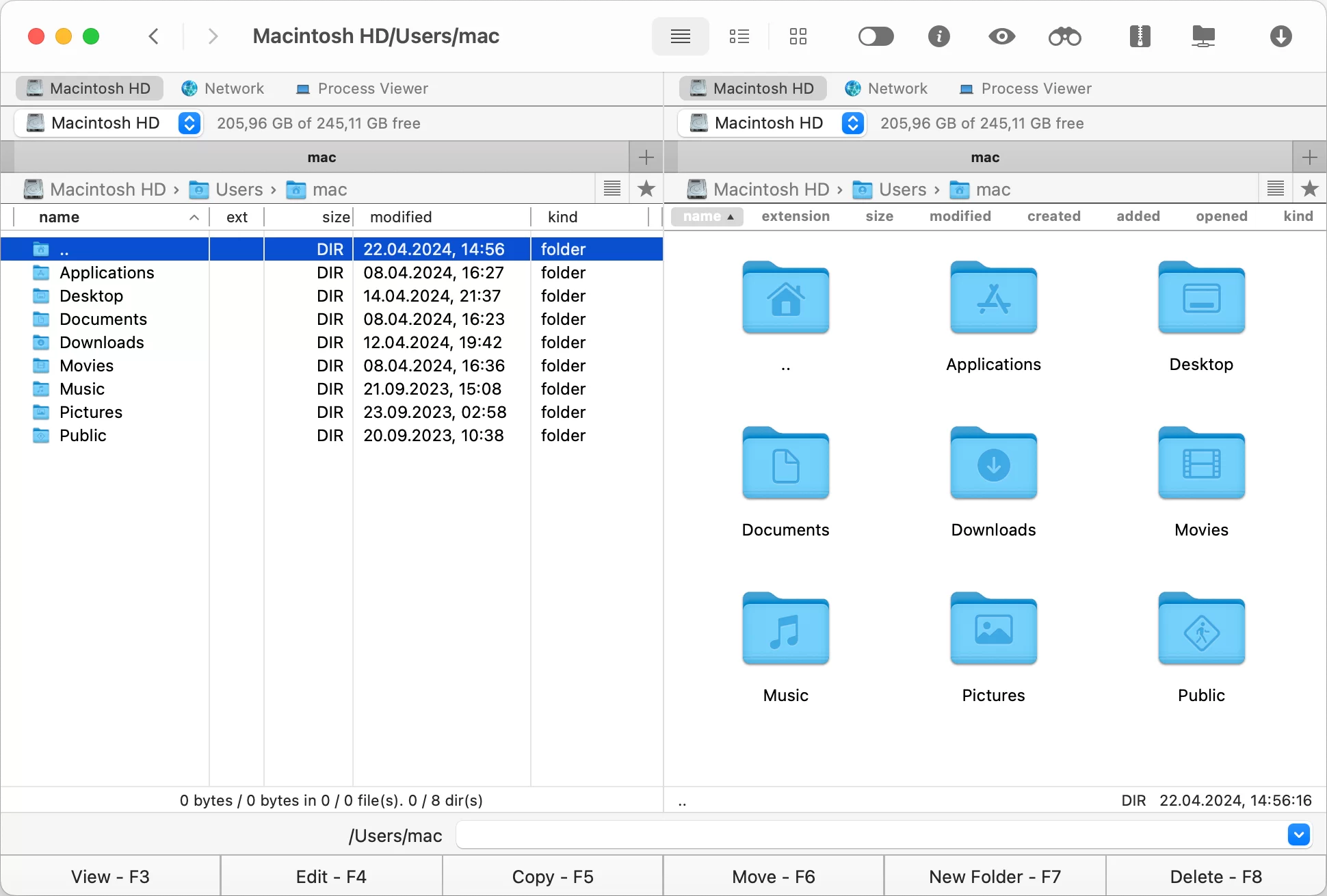
The dual-pane interface is the defining feature. Your screen splits into two independent file browsers, and each pane can display a local directory, an FTP server, or a cloud storage account.
This layout eliminates the constant back-and-forth of single-pane file managers. You see the source and destination at the same time, which makes file transfers faster and less error-prone.
File Management Tools
Commander One includes batch renaming, file queuing for large transfers, and a built-in file viewer that handles text, images, hex, and binary files without opening a separate application.
You can also search across remote servers, which is useful when you’re looking for a specific config file buried three directories deep on a production server.
Security and Encryption
SFTP connections use SSH key authentication in addition to password login. If you manage servers that require key-based access, Commander One handles that natively. FTPS connections support both explicit and implicit TLS, giving you flexibility depending on your server’s configuration.
Cloud Integration
You can mount Google Drive, OneDrive, Dropbox, Amazon S3, Backblaze B2, and several other services as local drives in Finder.
This turns cloud storage into something that feels like a regular folder on your Mac, and you manage everything from the same interface you use for FTP.
Built-in Terminal
The app also includes a terminal emulator, so you can run command-line operations on remote servers without opening a separate SSH client. For developers and sysadmins, this keeps everything in one place.
Commander One vs. Other Mac FTP Clients
The two most common alternatives on macOS are Cyberduck and FileZilla. Both work, but they approach the problem differently.
Cyberduck
Cyberduck is a single-pane client with good cloud storage support. It’s free and open-source, which makes it popular.
But the single-pane layout means you’re constantly switching between local and remote views, and it lacks the file management tools that Commander One includes.
If all you need is a basic FTP connection once a week, Cyberduck gets the job done. If you work with remote servers daily, the limitations add up.
FileZilla
FileZilla is another option with a long history. It has a split-pane interface, but the UI looks dated on macOS and hasn’t kept pace with modern design conventions.
FileZilla also bundles adware in its installer on some platforms, which has eroded trust among users over the years.
Its feature set for raw FTP work is solid, but it doesn’t offer cloud storage integration or the broader file management capabilities that Commander One provides.
Why Commander One Wins Out?
Where Commander One pulls ahead is in combining FTP functionality with everyday file management. You don’t need one app for FTP, another for cloud storage, and a third for local file operations. Everything lives in a single application that looks and feels like it belongs on macOS.
The keyboard shortcuts follow Mac conventions, the design language matches the operating system, and performance stays responsive even with large file transfers running in the background.
For casual users who connect to an FTP server occasionally, Commander One keeps things simple. For power users who manage multiple servers and cloud accounts, the depth is there when you need it.
Get Started
Commander One handles FTP connections on macOS without fuss, and it does a lot more on top of that. The combination of FTP/SFTP/FTPS support, cloud storage integration, and a clean dual-pane interface makes it a practical choice whether you manage one server or twenty.
Download Commander One and try it yourself. If you’re looking for a secure and user-friendly FTP client for your Mac, Commander One is the right tool for the job.